This utility optimises your roster feed for third-party calendar applications. Please note that Air Maestro via Okta, along with official updates or direct notifications from Operations, always serves as the definitive reference. While this proxy reflects shifts scheduled inside Air Maestro, full end-to-end synchronisation can take up to 48 hours depending on your calendar provider. This project is a supplementary tool; no responsibility is accepted for scheduling discrepancies or missed shifts.
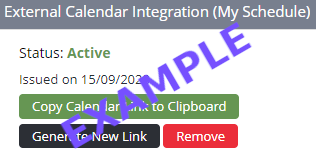
To locate your personal feed details, log into Okta, open Air Maestro, navigate to the Schedule module, and scroll to the bottom of the display.
Generate your standard external link (if it is not already active), copy it from Air Maestro, paste it into the prominent field below, and click the "Generate Modified Link" button. Use the resulting customised subscription URL in your chosen calendar app. For best results, complete this setup directly on the primary device you plan to view the schedule from. While configuration can be completed via corporate hardware, note that strict workplace network profiles may occasionally restrict personal account linkages or clipboard functions.
Setup Instructions
Air Maestro's provider, Avinet, maintains a comprehensive implementation overview here. Step-by-step configurations for Google Calendar, Outlook Web, and Apple Calendar platforms are also outlined below.
Note: Subscribing to external calendars directly through native, company-managed Outlook Desktop applications is currently unsupported. However, adding the feed via your Outlook Web access allows it to automatically synchronise and display across your local desktop installations shortly after.
With your newly generated URL copied, complete the following steps:
Click here or select the icon above to go to the Google Calendar web settings.
If clicking the link triggers your phone's native app, close it, long-press the link, and select "Open in new window" to bypass app redirections.
Ensure you are authenticated into the specific Google profile where you wish the roster to reside.
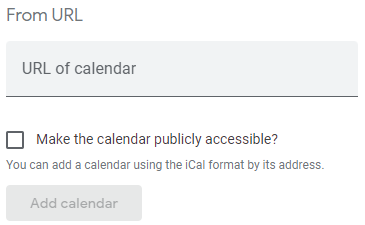
Paste your modified URL into the "URL of calendar" text field and select "Add calendar".
Once added, allow a few moments for the calendar infrastructure to pull the baseline data into the web portal view.
If the calendar data does not automatically update on your mobile application, verify these system values:
Open your mobile Google Calendar application.
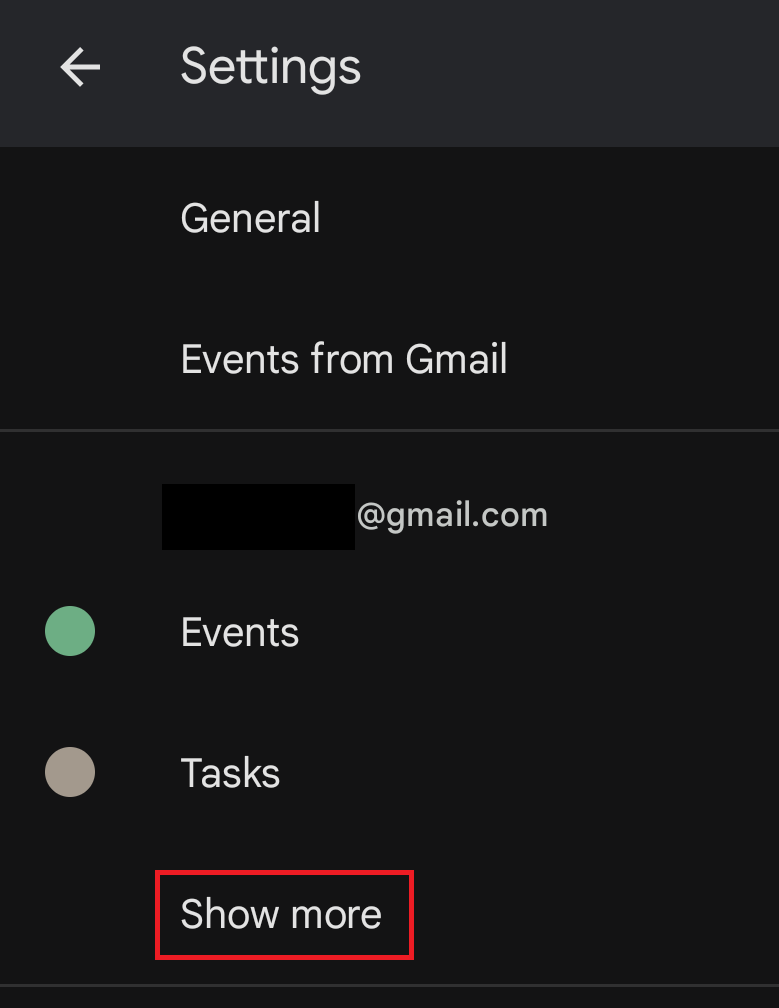
Open the application navigation drawer, go to Settings, and select "Show More".
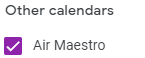
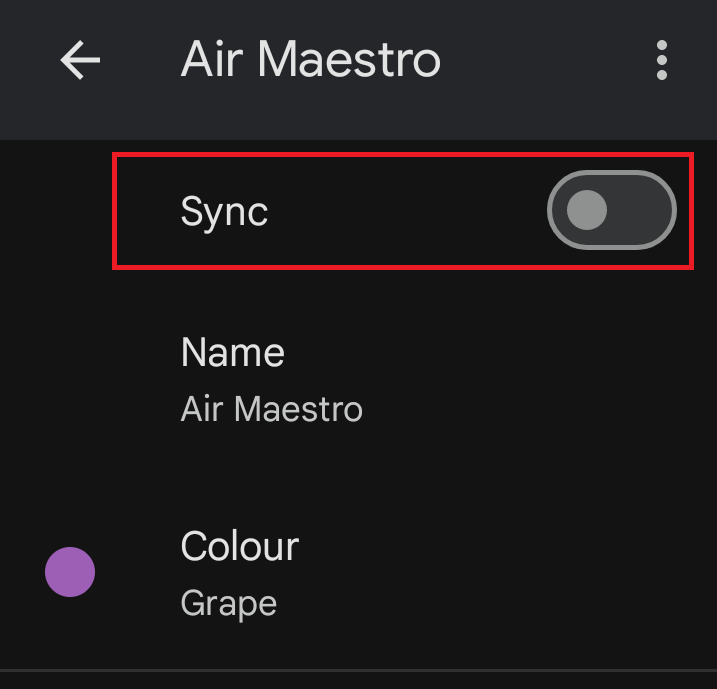
Locate the target roster name, toggle "Sync" on, and assign your preferred category colour.
Exit the settings panel to confirm changes on your primary grid layout.
With your newly generated URL copied, complete the following steps:
Click here (or use the Outlook icon above) for personal accounts.
Click here (or use the corporate M365 icon above) for enterprise profiles.
If the hyperlink automatically prompts a local app launcher, long-press the text instead and select "Open in new window".
Log into the target Microsoft profile when prompted.
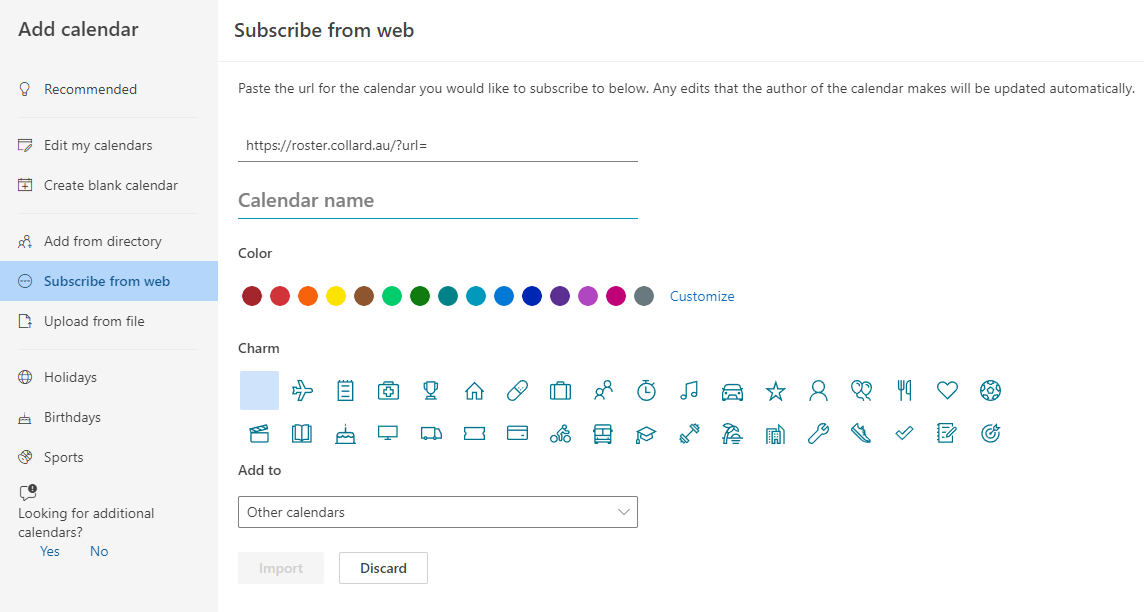
Paste your modified subscription URL into the input field, specify a unique calendar name, and click "Import".
Confirm the registration interface indicates a successful import before returning to the main dashboard.
If the feed fails to display on your mobile device application:
Launch the mobile Outlook application.
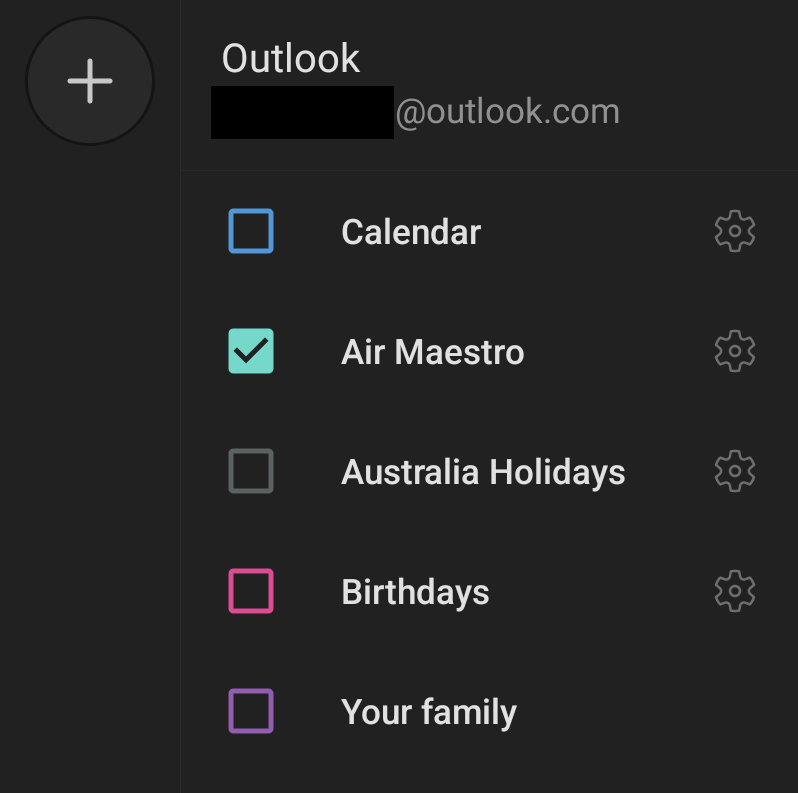
Tap your profile avatar or account icon to bring up the viewing parameters panel.
Locate your custom roster entry and ensure its checkbox is active.
Return to the main grid to view your synchronisation metrics.
With your newly generated URL copied, complete the following steps. If you generated the subscription link on a desktop workstation, share it to your mobile target device via email or secure notes to enable a clean copy-paste action.
Open the native iOS Calendar application.
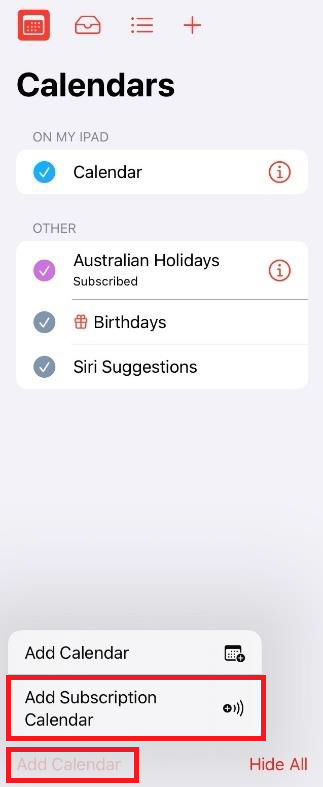
Tap the "Calendars" management text located at the bottom centre of the interface.
Tap "Add Calendar" in the lower-left boundary.
Select "Add Subscription Calendar" from the choices list.
Paste your modified subscription URL into the target input field, adjust properties as needed, and save.
Exit the settings window to confirm your active schedule dates.
Note: Duty and Tasking Sign-On Protocols: Your scheduled sign-on time aligns strictly with active operational flight events. While Air Maestro's native web portal shows overlapping DUTY and TASKING shift entries, this processing script automatically conforms the feed to standard operational logging protocols—extending the TASKING block metrics and filtering out the redundant underlying DUTY entry.
This proxy continuously intercepts your structural core calendar allocations from Air Maestro and dynamically applies the following optimisations:
Normalises event timezones to resolve discrepancies between device local settings and system data outputs.
Filters out duplicated Leave entries.
Filters out duplicated Day Off entries.
Filters out duplicated Standby logs.
Filters out duplicated Administrative events.
Removes obsolete Assigned Base blocks.
Formats all-day entries (such as RDOs) natively to eliminate layout shift artifacts across global timezone adjustments.
Simplifies indexing strings (e.g., refactoring "RDO - Rostered Day Off" to "RDO").
Validates and anchors recency metrics correctly on target dates (e.g., Night Surv tasks or EPs).
Appends a live synchronisation timestamp inside your event descriptions to provide visibility into data freshness.
Each update request issued by your target application fetches fresh database details from Air Maestro, dynamically processes your profile filters, and serves the updated output back to your device.
No calendar details or personal event logs are cached or saved on this server architecture.
Event blocks conform cleanly to your active device time tracking settings. For instance, if you have a 0600H flight block out of Broome but your device remains pinned to Darwin time, the display shows 0730 until your hardware registers the target Western Australian timezone drop.
If you generate a new token or reset external links inside Air Maestro, you must input that fresh URL here, delete the old subscription entry from your client device, and add the newly generated address.
Depending on network variables, initial processing and indexing into third-party servers can take between 5 and 60 minutes.
Updates typically process every 24 hours, but actual update frequencies (ranging between 4 and 48 hours) depend entirely on the subscription checks dictated by Air Maestro and your calendar client. If an event fails to synchronise past 48 hours, allow a brief operational window for connection drops to self-correct.
These layout properties are configured to support the majority of crew configurations. If you have data formatting or structural layout suggestions, please reach out.
For custom operational configurations, you can append advanced query parameters directly to your generated URL:
To retain overlapping profiles and keep Duty and Tasking blocks separate, append &overlap=true to your URL.
To strip the "Last Roster Sync" tracking row from descriptions (ideal if persistent change warnings trigger notifications), append &hideupdate=true to your URL.
Additional automation settings will be listed here as new feature flags roll out.
For questions regarding how this script logic parses data streams, you can review the repository codebase directly on GitHub.